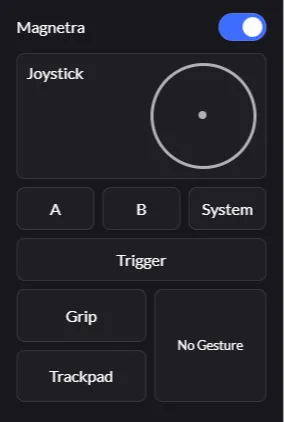
Magnetra1 Usage-specific Guide
Magnetra1 Usage Guide by Application
Performing Intense Movements with Magnetra + ContactGlove1
If you move the Glove vigorously while your fingers are off the Magnetra control panel or while Magnetra is released, the magnetic latch hinge of Magnetra may become detached.
For Applications Without Input Operations (e.g., Dance, etc.)
Remove Magnetra or detach Magnetra and use the existing input module.
For Applications with Input Operations (e.g., Games, etc.)
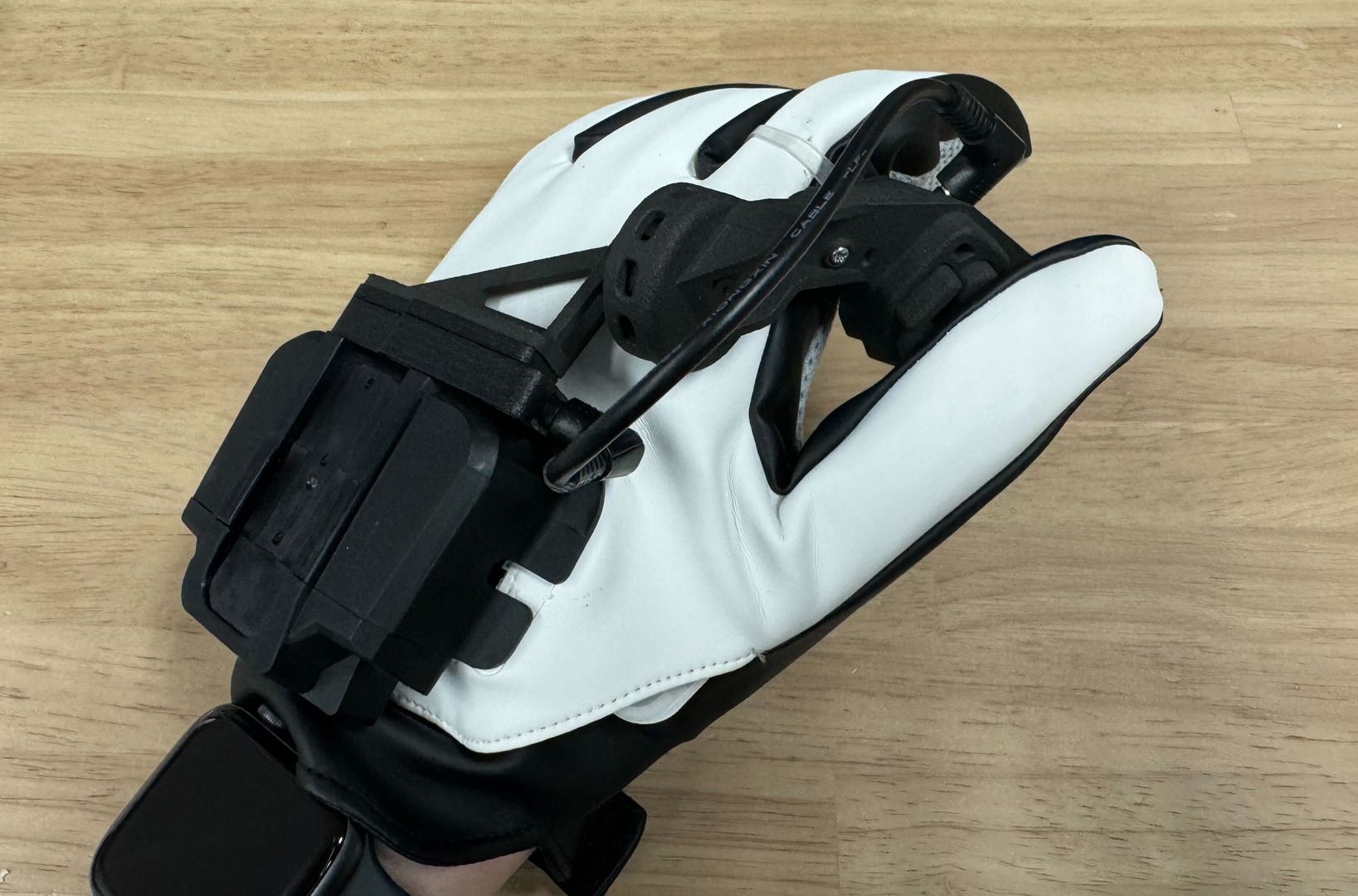
Mount Magnetra and place your thumb on the joystick or button while lightly pinching the module between your thumb and the side of your index finger.
Switching Between Magnetra and Existing Module Inputs
You can enable/disable Magnetra while keeping the existing module connected.
When Magnetra is disabled, the input from the existing module will be applied.
If you want to disable the input from the existing module:
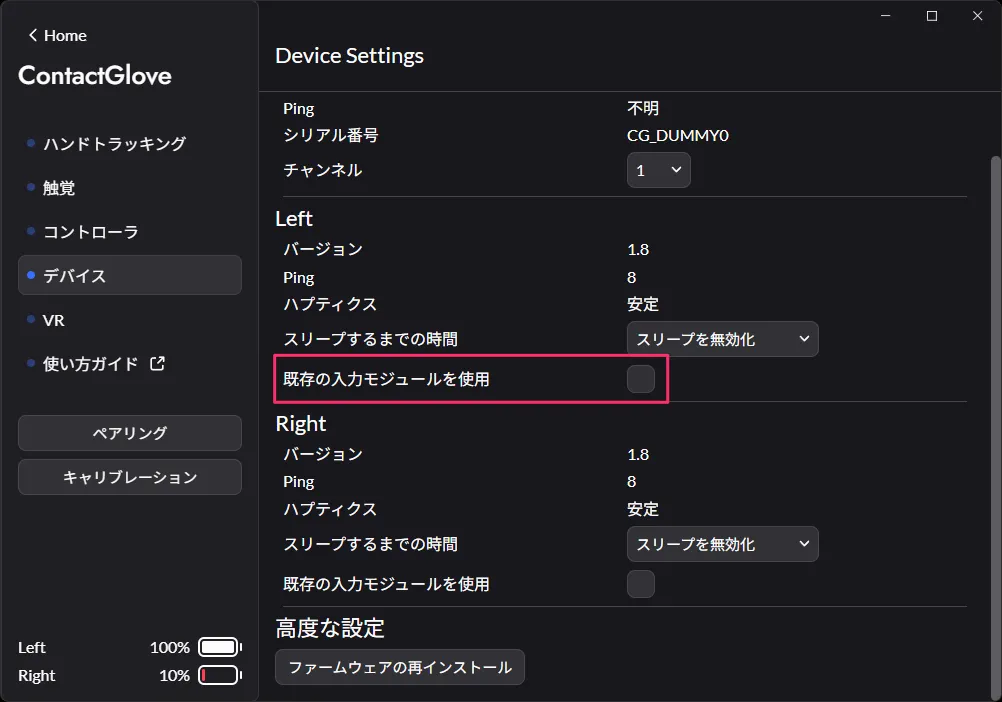
In the Devices tab of DivingStation, uncheck Use existing input module under Left/Right.
Temporarily Enabling/Disabling Finger Bending Input
When using Magnetra, you can toggle the finger bending input on and off using a physical button.
You can use it with the following steps:
- In the binding settings of DivingStation, assign the button you want to use for toggling to Enable/Disable Finger Bending Input.
- Open the Controller tab in DivingStation.
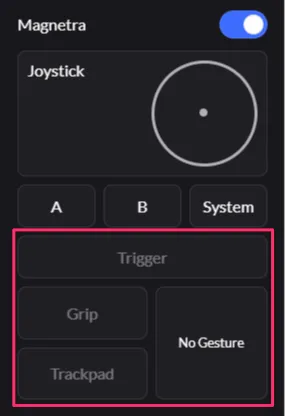
- Each press toggles finger bending input on or off. When disabled, it is displayed in gray.
- Example: Binding settings: Index finger bend = Trigger / Trackpad Click = Thumb bend
Enabled Disabled