Usage Environment Guide
For Motion Capture (Hand Tracking Only)
- If you are only using the hand tracking feature, purchasing additional modules (such as Magnetra2) is generally not required.
- For details on the hand tracking functionality, please refer to the Product Specifications Page.
Integration with mocopi / Using with Virtual Motion Capture
- Please refer to the following campaign page and our documentation for usage instructions.
Using as a VR Controller
- A set purchase of ContactGlove2 + Magnetra2 is required
- Please also refer to the following sections regarding the usage environment for each tracker.
- The method for assigning ContactGlove2 and position tracking trackers is the same regardless of the device. Please refer to the following:
- For switching between other controllers, please refer to the following section:
Using with the LightHouse Tracking System
( = Lighthouse-Compatible HMD + Vive/Tundra Tracker, etc.)
- You will need the following two LightHouse-compatible devices to track the position of the ContactGlove unit.
- If you do not have the following devices, please purchase them separately.
- SteamVR Base Station 2.0 (or 1.0)
- Compatible Trackers x2 (Tundra Tracker, VIVE Tracker (3.0), VIVE Tracker 2018, etc.)
- For setup instructions, please refer to this guide.
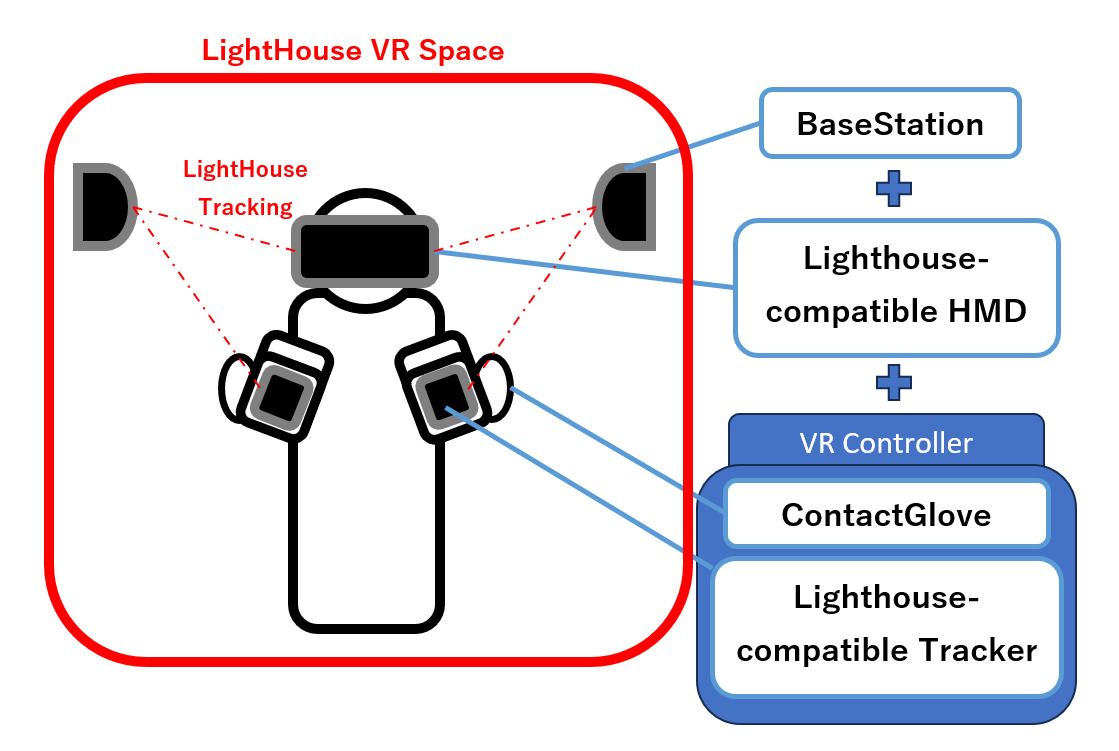
- The adapter for mounting compatible trackers to the main unit is included in the ContactGlove2 set.
- The two devices mentioned above (Base Station/Tracker) are third-party products. Please refer to the product pages of each device and compatible HMDs for more details.
Using in a Mixed LightHouse Environment
( = SteamVR-Compatible / Non-Lighthouse-Compatible HMD + Vive/Tundra Tracker, etc.)
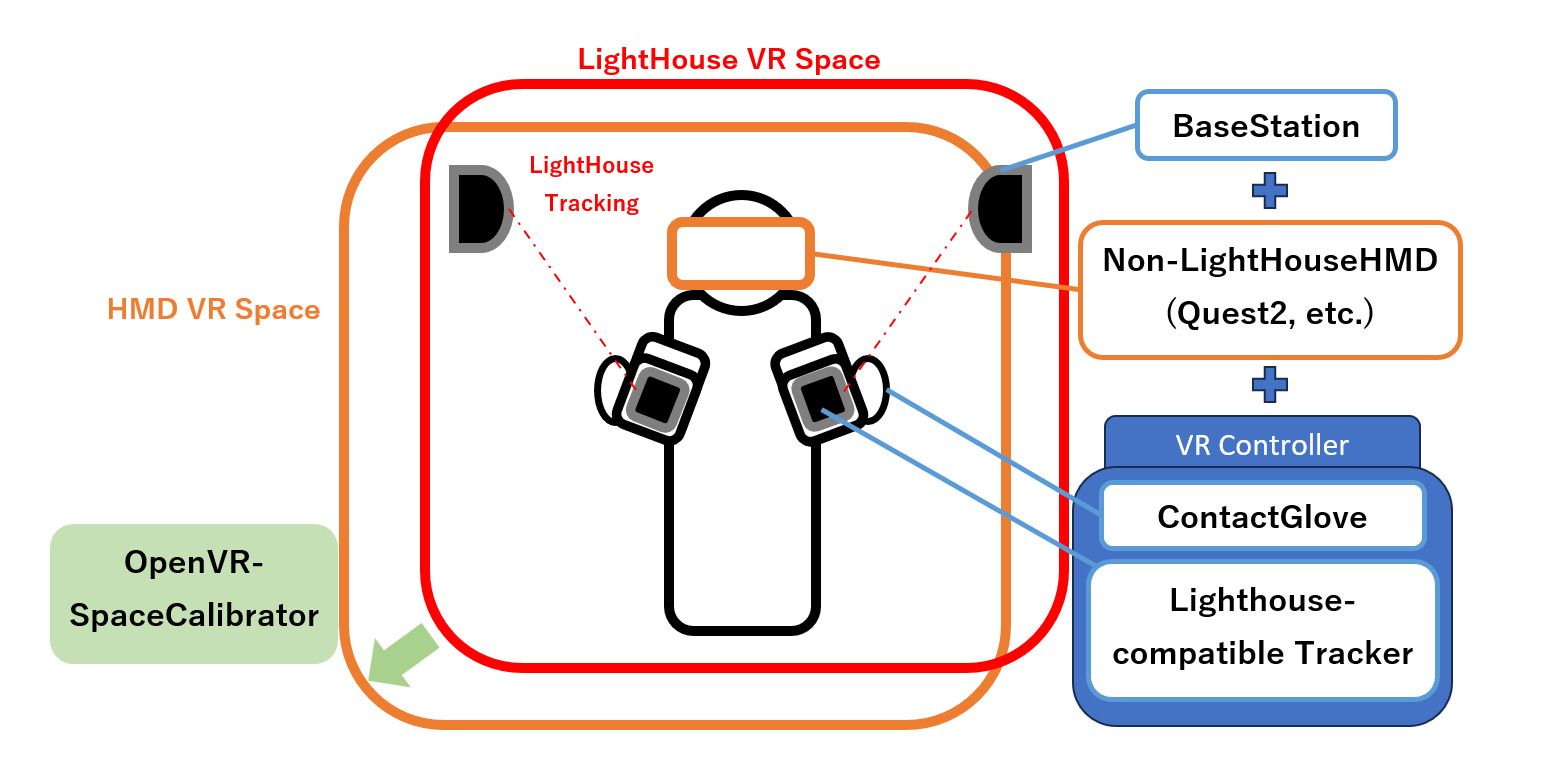
- You need to install OpenVR-SpaceCalibrator (External Link) in SteamVR to align the LightHouse tracking system space with the HMD space.
Using with VIVE Tracker (Ultimate)
( = SteamVR-Compatible HMD + VIVE Tracker (Ultimate), etc.)
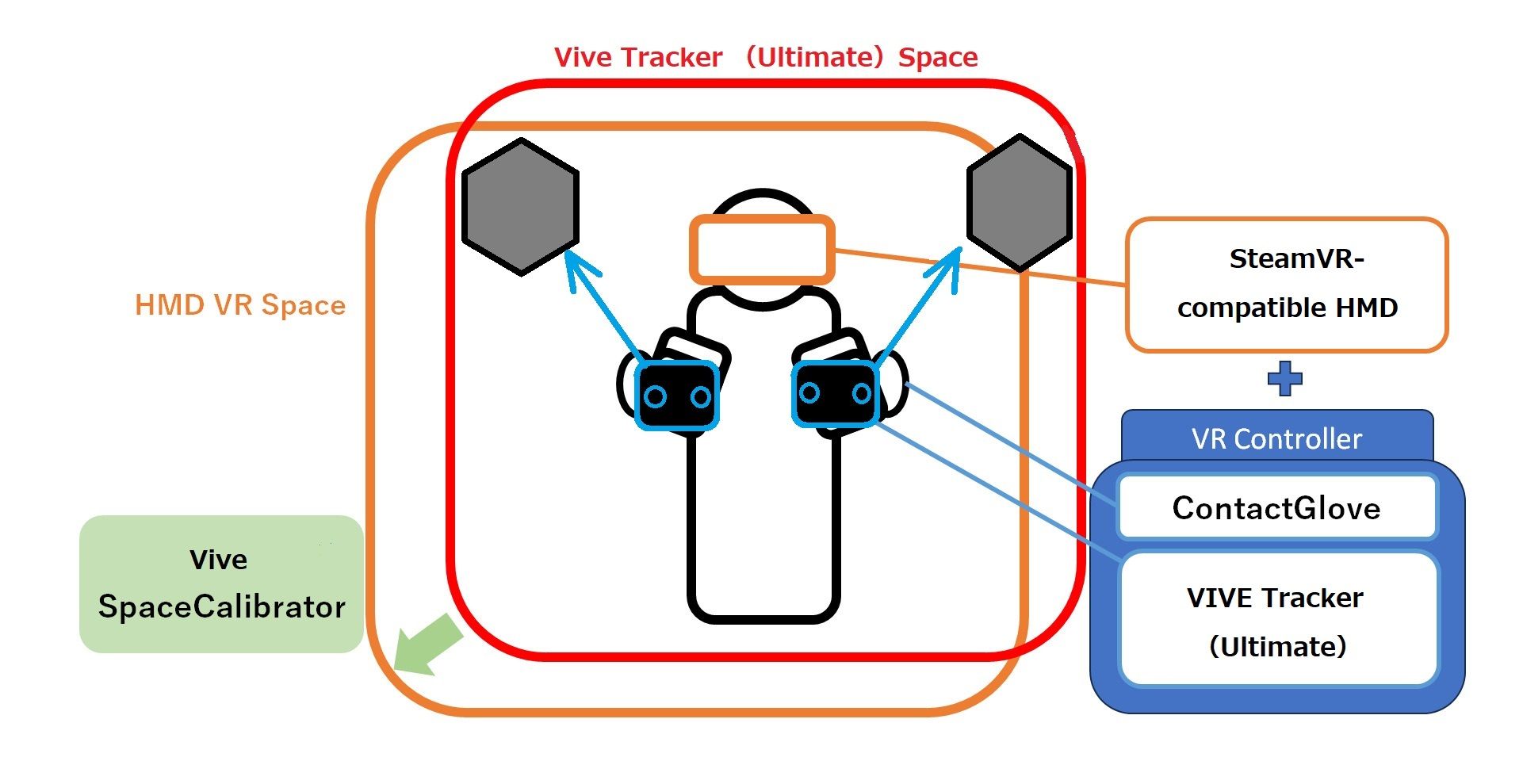
- Perform calibration with the SteamVR-compatible HMD space (align the VIVE Tracker (Ultimate) space with the HMD space).
- For instructions, refer to the official VIVE Tracker (Ultimate) documentation.
- SteamVR-Compatible Headset Setup (External Link)
Using the Quest Controller Mount (Quest 3/3S/Pro)
( = Quest 3/3S/Pro + Quest Controller Mount )
- When using DivingStation, a hand position offset is required. See the VR tab for details.
- When using ContactGlove2, disable hand tracking switching in the Quest headset settings. If left enabled, unintended switching may prevent normal operation.
Switching with Other SteamVR-Compatible Controllers
-
By configuring DivingStation, you can switch between SteamVR-compatible controllers without restarting SteamVR (switching the main controller between ContactGlove2 <-> another controller).
-
Switching Procedure
- Turn off the ContactGlove2 unit and the assigned trackers. If they are not turned off, the controller may not be recognized correctly. If using the Quest controller mount, turn off only ContactGlove2.
- Turn on the controller you want to switch to. If it is not recognized correctly, check if ContactGlove2 and its trackers are turned off. With the Quest controller mount, switching to the Quest controller happens when ContactGlove2 is turned off.