Troubleshooting
DivingStation
- If pairing fails
To avoid communication interference, insert the ContactGlove2 dongle away from other dongles (e.g., VIVE Tracker/Tundra Tracker dongles, wireless mouse dongles, etc.).
Additionally, using a USB hub may slow down communication in some environments.
- If hand calibration does not work properly
Before performing each calibration pose, try gently bending and extending your fingers a few times before assuming the pose.
- If the SteamVR add-on does not start
- Restart DivingStation.
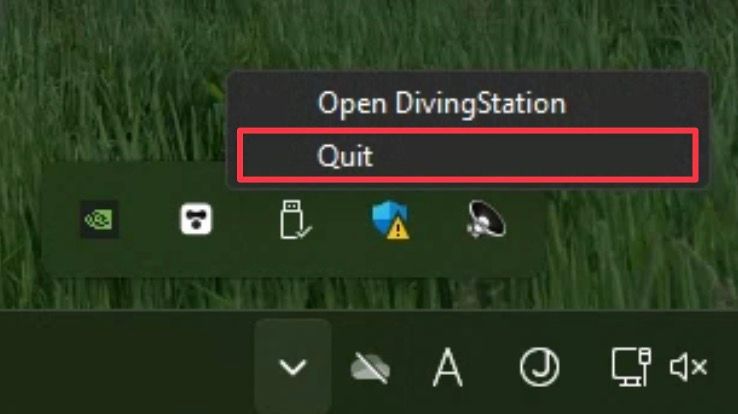
To exit DivingStation, right-click the system tray icon and select Quit.
(Clicking the "X" button in the top right corner does not fully close the application.)
- If the issue persists, restart SteamVR.
- If restarting both does not resolve the issue, check the SteamVR add-on management settings to ensure the "Diver-X" add-on is not disabled.
- Open SteamVR settings.
- Under Advanced Settings, select Show.
- Select Startup / Shutdown.
- Select Manage Add-ons.
- If "diver-x" is turned off, switch it on.
Communication
If communication is slow or laggy
Open DivingStation, select Devices, and check the ping for each device.
- If the dongle's ping is around 100 ms or higher:
- The USB connection may be unstable. Try connecting the dongle to a different USB port.
- If the Left or Right device ping is around 100 ms or higher:
- Change the communication channel, as the signal may be interfering with other devices.
- Check if another device's dongle is plugged in near the ContactGlove2 dongle. If so, move them apart.
SteamVR
If the ContactGlove2 icon appears in SteamVR but fingers do not move
Possible causes:
- DivingStation is not open
- If DivingStation is not running or the gloves are not connected, finger movement will not be detected in SteamVR.
- DivingStation and SteamVR are not communicating
- Open the Control Panel → System and Security → Windows Defender Firewall → Select Allowed Apps.
- Find divingstation.exe and check whether it is allowed on the trusted network type you are using.
If the issue persists
If the problem continues, your security software may be blocking communication. Check its blocking history and application-specific permissions. If the issue persists, contact support.
If the ContactGlove icon remains gray and hands do not appear in SteamVR
Your tracker role settings may not be configured correctly. Please review and adjust the settings.
Device Issues
If an error occurs during firmware updates
Try the following steps:
-
Restart the glove and attempt the update again.
- Turn on the glove before connecting it to the PC, and ensure the LED blinks blue or orange.
- During the firmware update, the glove's LED should turn green.
-
Restart your PC.
- Ensure no other applications are using the glove's COM port.
-
Check that the cable used to connect the glove to the PC is functioning properly.
-
Verify that the USB port used for the glove or dongle is working correctly.
-
If using an externally powered USB hub, try connecting the dongle or glove to the hub and performing the update.
If the issue persists after these steps, please contact support.
If the glove LED is green
If the LED remains green when firmware is not being updated, the device has failed to start. Please restart the glove.
If the glove LED is blinking pink
A communication error has occurred. Restart the glove and check for nearby wireless interference before reconnecting.
If the glove shuts down shortly after startup with a short beep
The battery protection shutdown has been activated to prevent over-discharge. Recharge the glove and try turning it on again.
If the dongle is inserted but not recognized
Press the Settings button in the top-right corner of DivingStation and click Install USB Driver.
If the glove does not show a red charging LED while charging
ContactGlove2 is designed to pause charging when it becomes too hot to allow cooling.
Turn off the glove and wait for it to cool before attempting to charge it again.
If the battery level displayed in DivingStation is incorrect
During charging, the battery level displayed in DivingStation may be inaccurate.
This does not affect operation, so there is no need for concern.