Capture Method
The UI may vary slightly depending on the version of VMC. This document is based on v0.56.
Loading a VRM
-
Load the VRM into VMC.
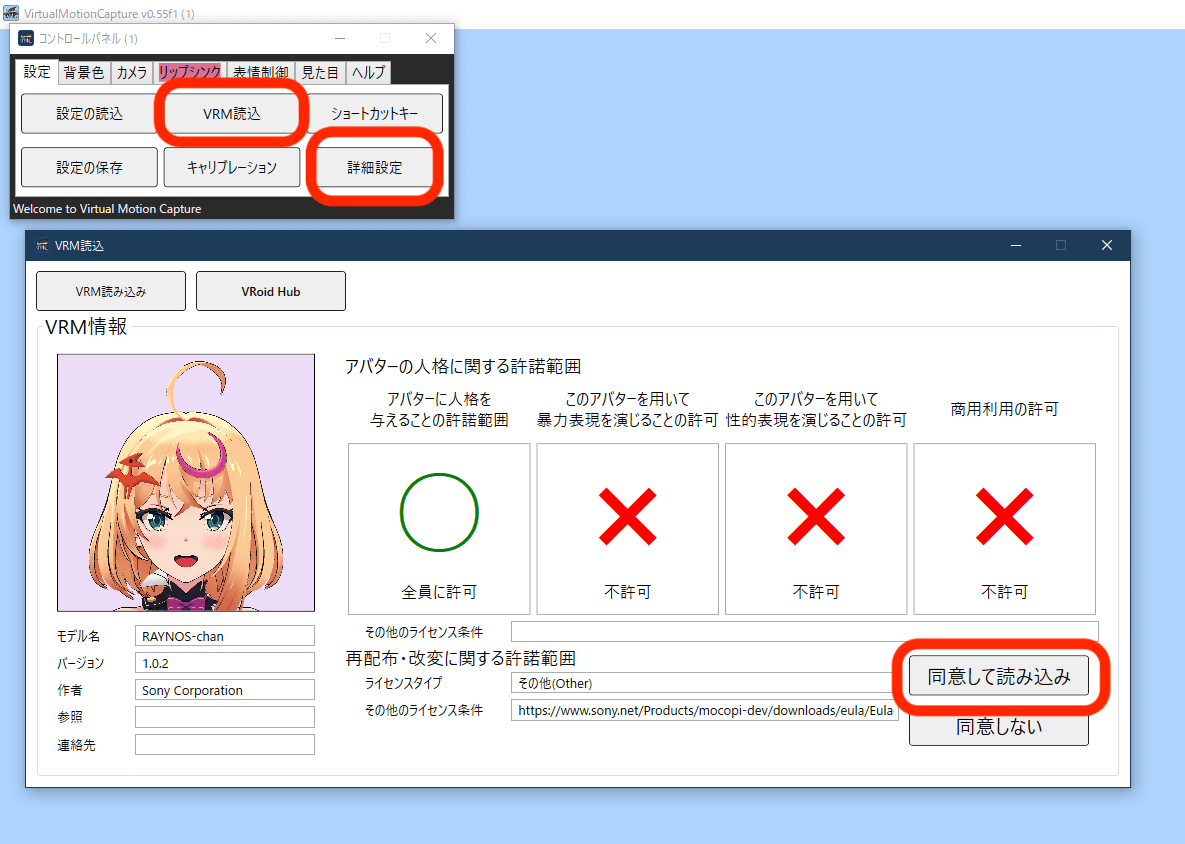
-
Load the same VRM model into DivingStation.
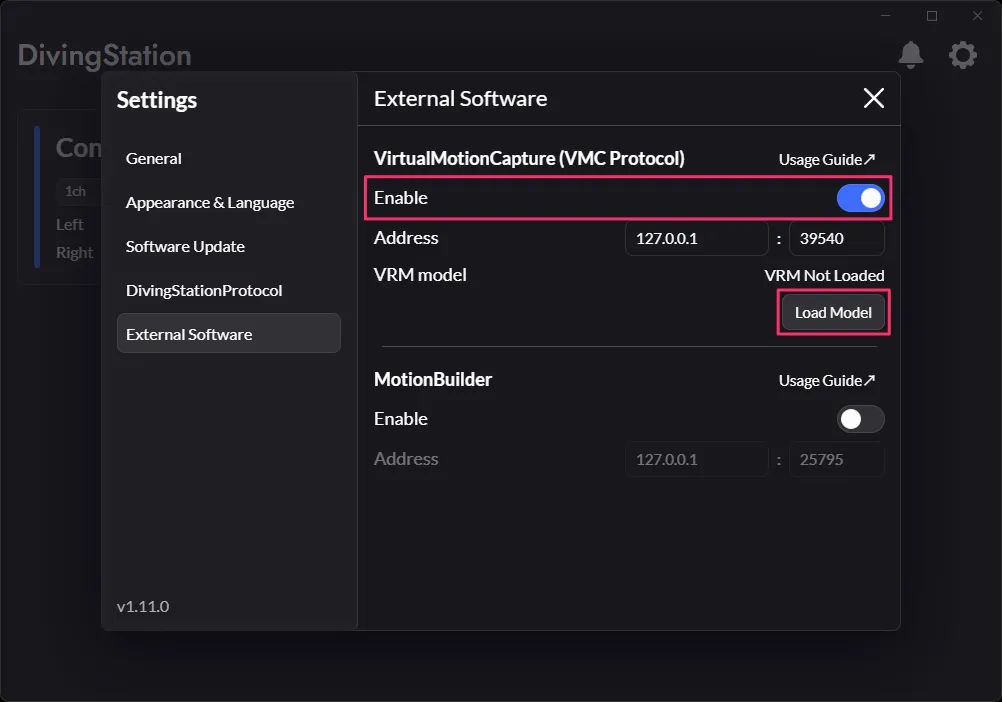
Make sure to load the same VRM model into both VMC and DivingStation.
VMC Settings
[Required] Motion Reception Settings
- Enable motion reception via OSC.
- In the VMC Protocol receiver list, check the port of the enabled receiver.
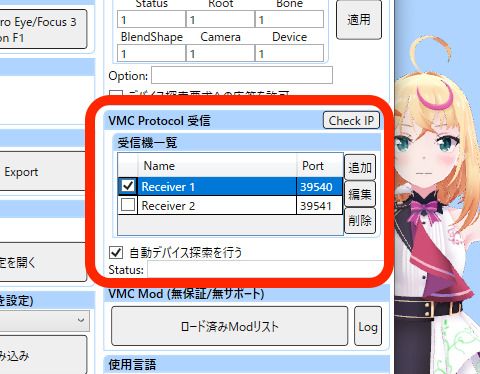
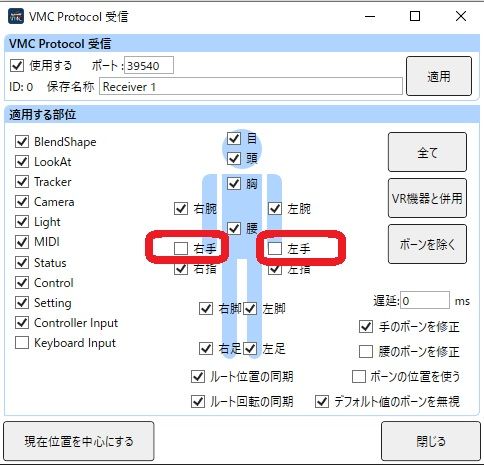
If using the mocopi Pro set in 12-point mode
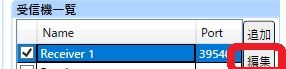
- Wrist angle information will be obtained from the mocopi sensor. Modify the DivingStation port (39540) settings as shown in the image.
| ① Open the DivingStation port (39540) settings | ② Modify the settings |
|---|---|
 |  |
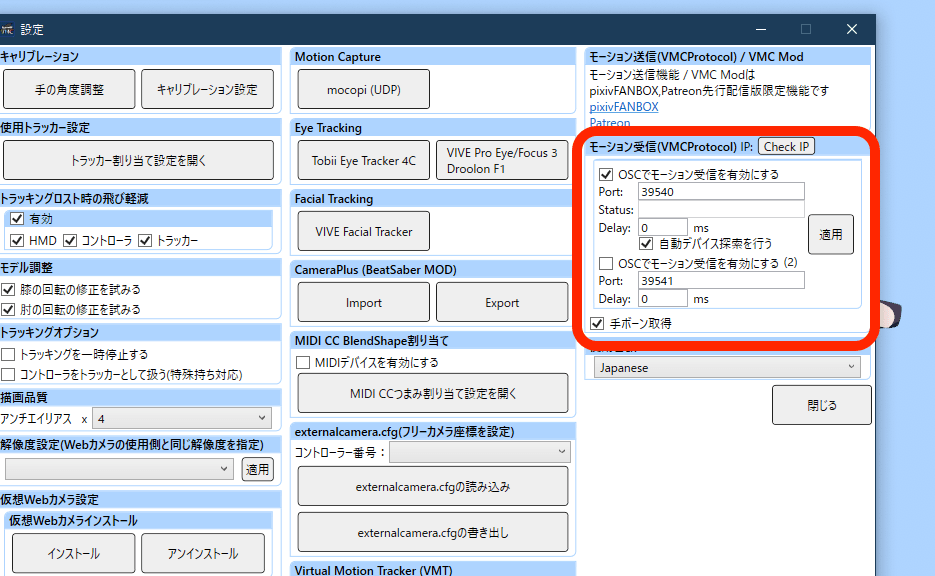
For v0.55 and earlier
- In the motion reception settings, enable both "Enable motion reception via OSC" and "Retrieve hand bones." Check the port number listed (usually a 5-digit number).
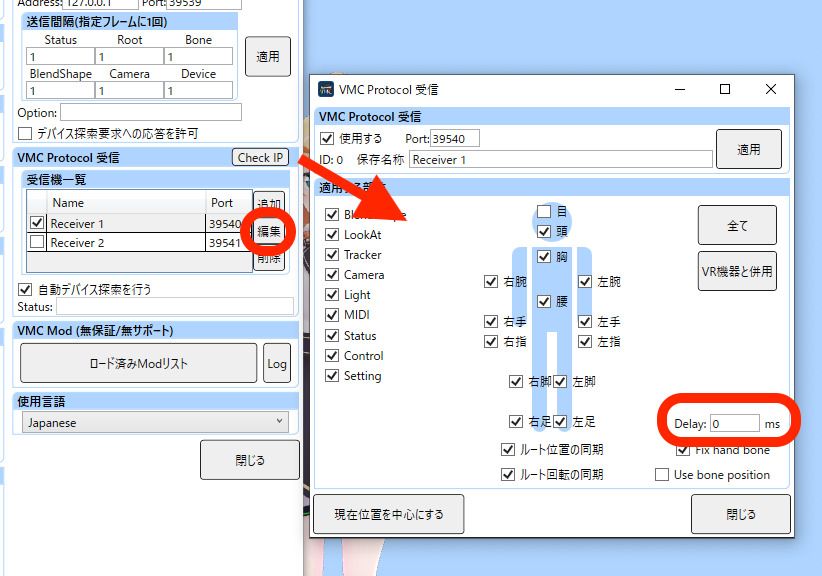
If mocopi synchronization lag is noticeable
Adjust the delay time to synchronize finger movements with body movements.
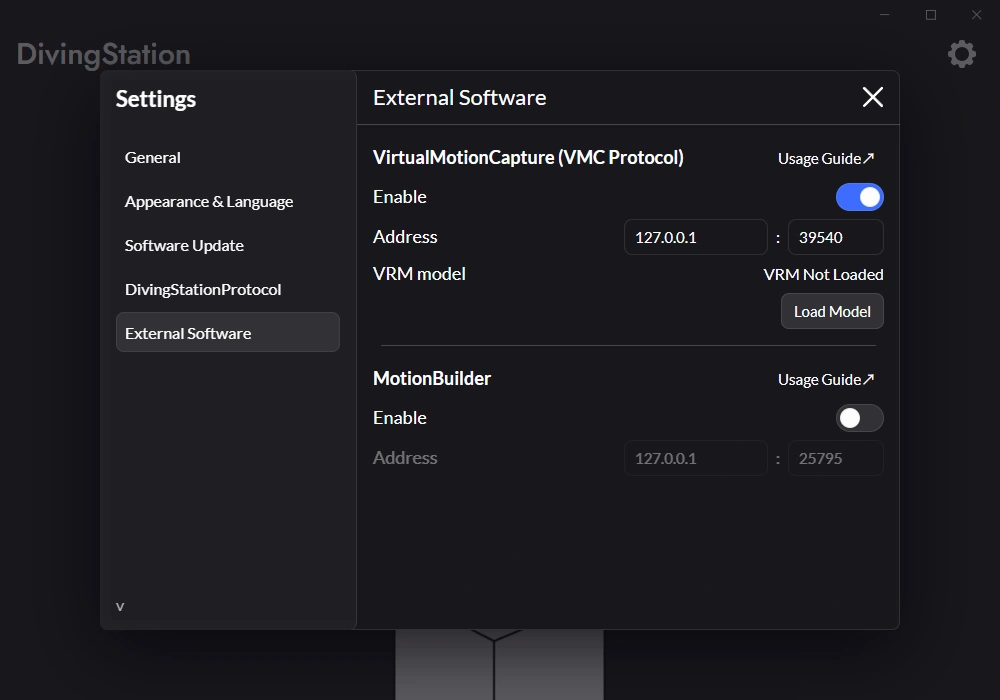
DivingStation Settings
Open the DivingStation settings and check that the Virtual Motion Capture port matches the port set in VMC. If they do not match, update the port number in DivingStation.
Calibration
-
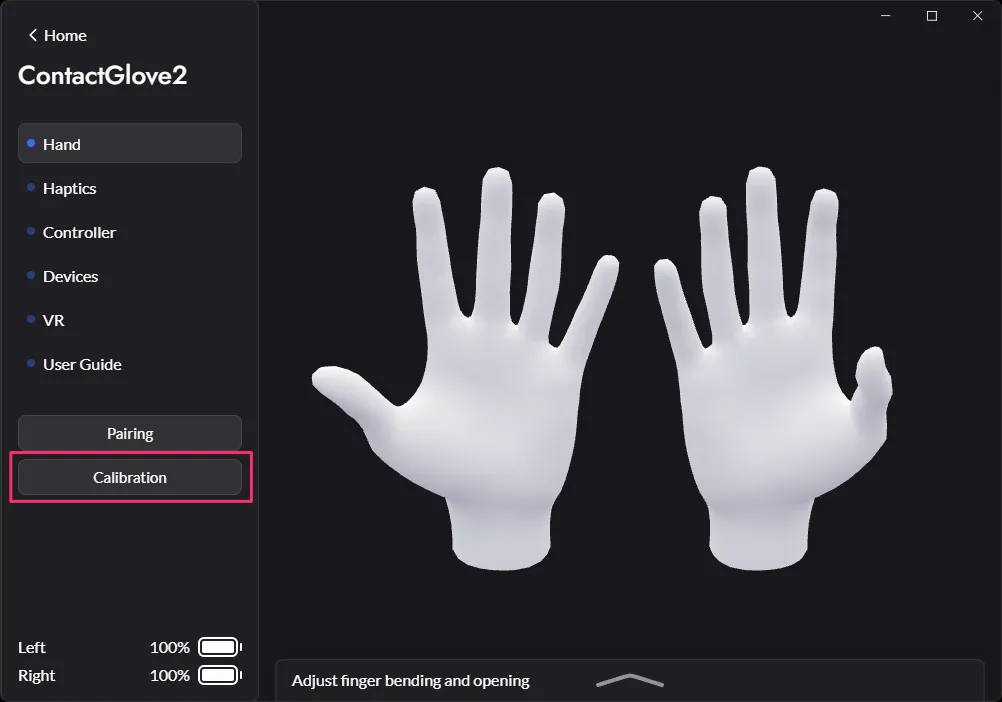
Press the Calibration button in DivingStation. You can also press the Space key to open the calibration screen.
-
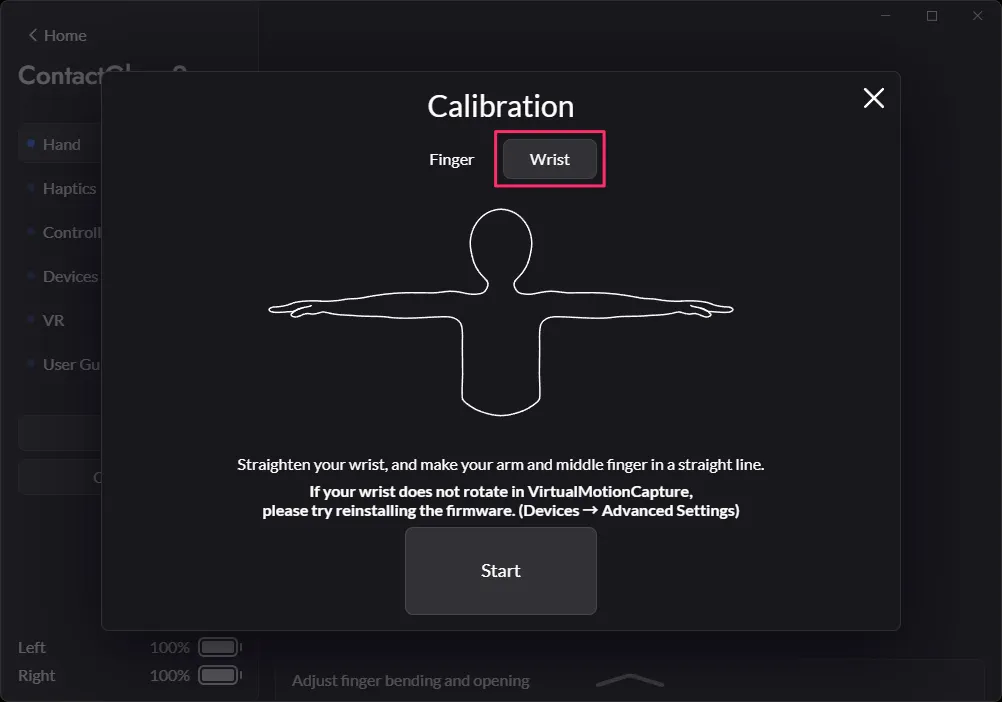
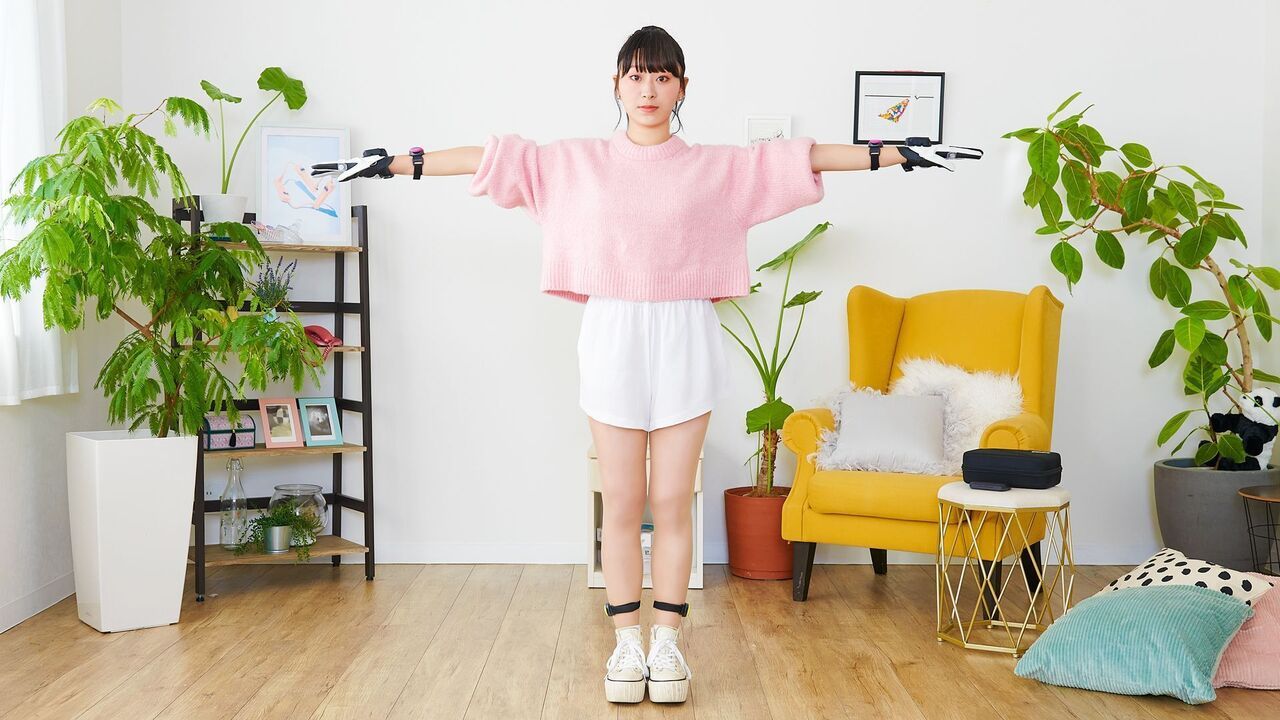
Select Wrist, assume the T-pose shown below, and start calibration.
For v0.55 and earlier
At this stage, ensure that the front-facing direction during mocopi calibration matches the front-facing direction during wrist calibration.
If the wrist movement feels incorrect, try recalibrating.