Controller-Based Facial Expression Control in VMC
Using the VMC Protocol via DivingStation,
you can send ContactGlove controller inputs and hand sign inputs to VMC.
- This guide explains how to configure facial expression control for VRM models using VMC Protocol.
Supported Versions
| Software | Version |
|---|---|
| DivingStation | v1.4.2 or later |
| Virtual Motion Capture | v0.58r1 or later |
Steps
-
Complete the following preliminary setup:
-
Launch VMC.
-
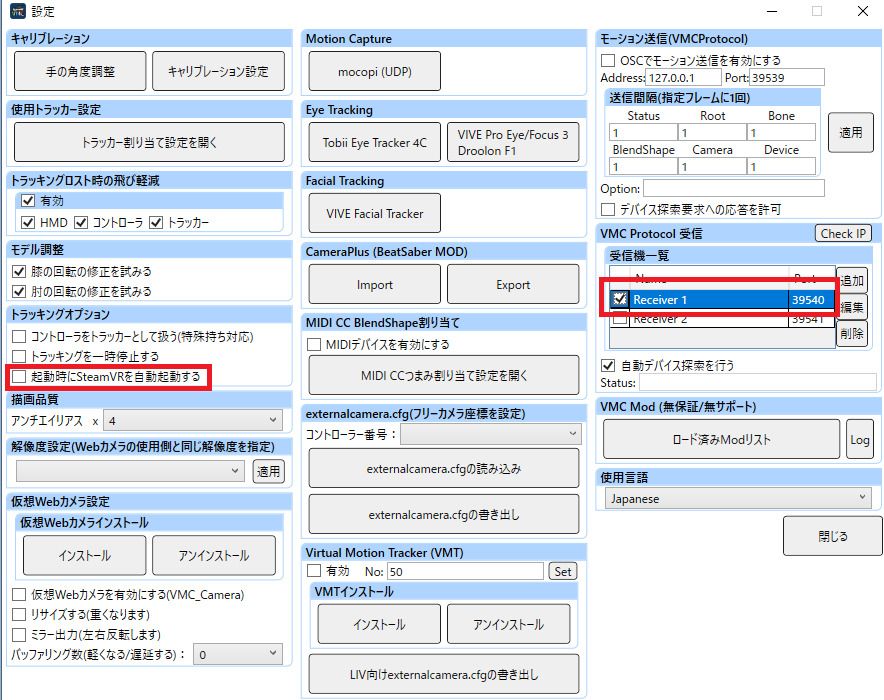
If using mocopi, check the following settings in VMC Control Panel > Advanced Settings:
- Tracking Options → Uncheck "Automatically launch SteamVR on startup".
- VMC Protocol Reception → Under Receiver List, check "Receiver 1 | 39540".
-
Open VMC Control Panel > Shortcut Keys (to configure facial expression control).
-
Use the default preset for Index Controller compatibility.
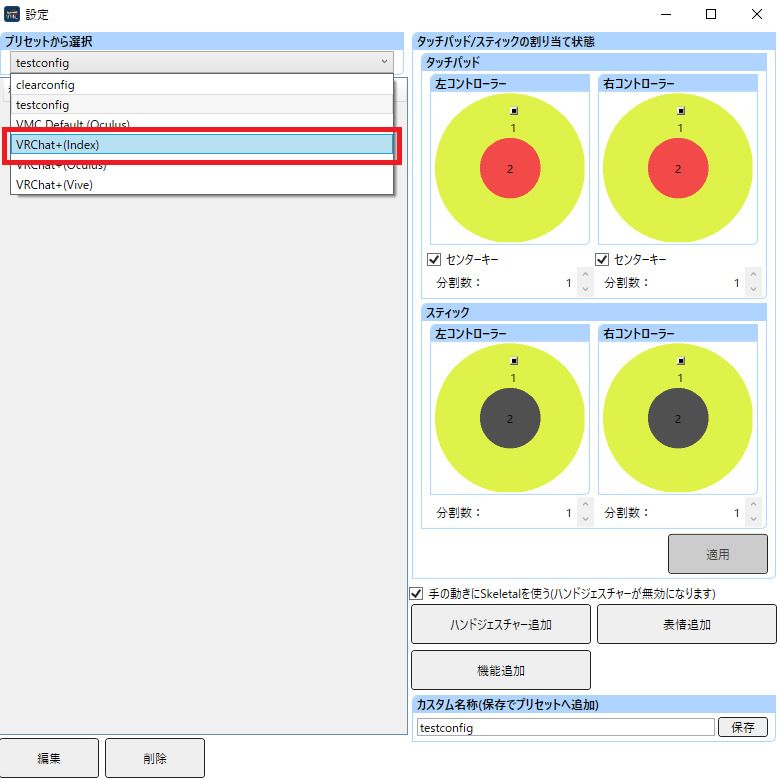
Alternatively, create a custom preset as follows:
- Enter a custom name and press Save.
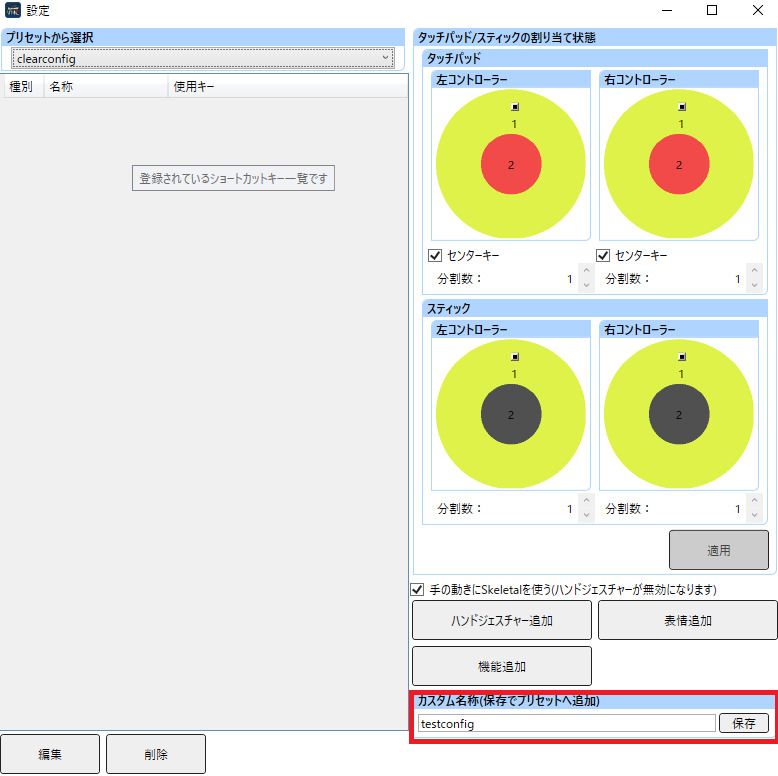
- Select the preset you just created.
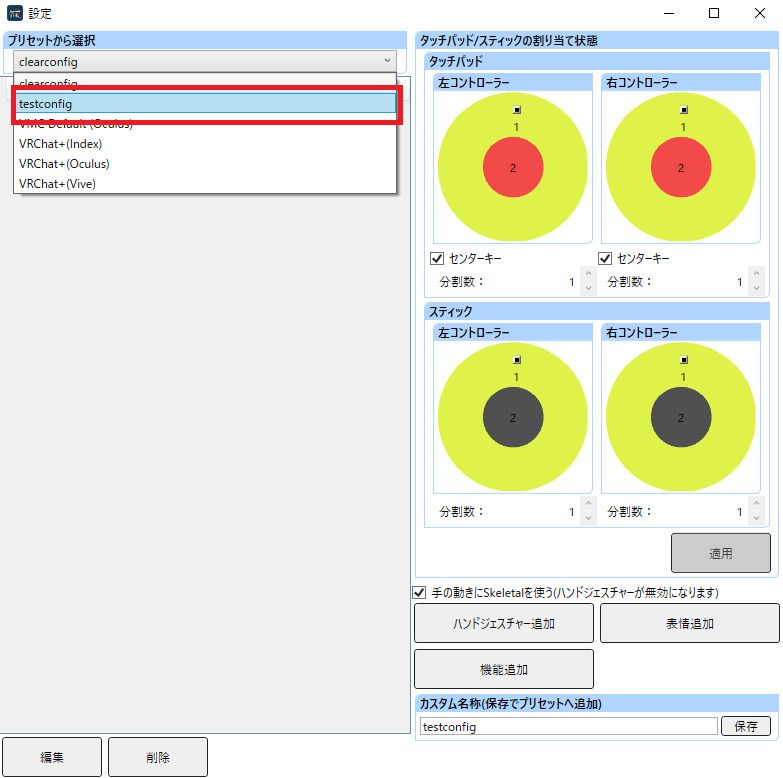
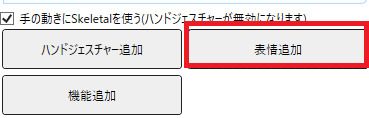
- Click Add Expression.
-
In the Expression Control Settings window, configure facial expression control as follows:
- Click the red box under "Assigned Key"
and press the desired controller input/hand sign input while wearing ContactGlove. - The performed input will be registered in the selection list.
Keep the inputs you want for facial control and delete unnecessary ones.
- Click the red box under "Assigned Key"

- Select the expression you want to trigger, then click Add.
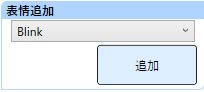
- The added expression will be registered to the assigned key.

- Select a save name, then click Register.
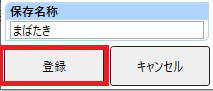
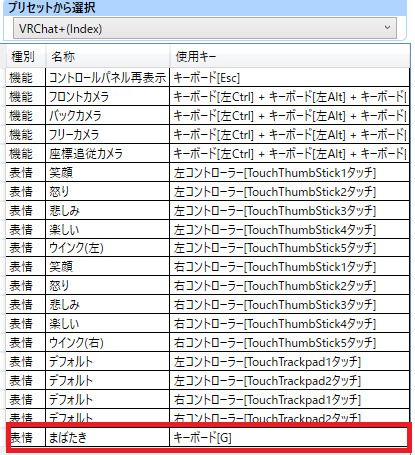
- The configured facial expression control will be added to the list
(in this example, the G key is assigned).