How to Use the UnitySDK
This page explains how to use the SDK version 1.1.0 or later.
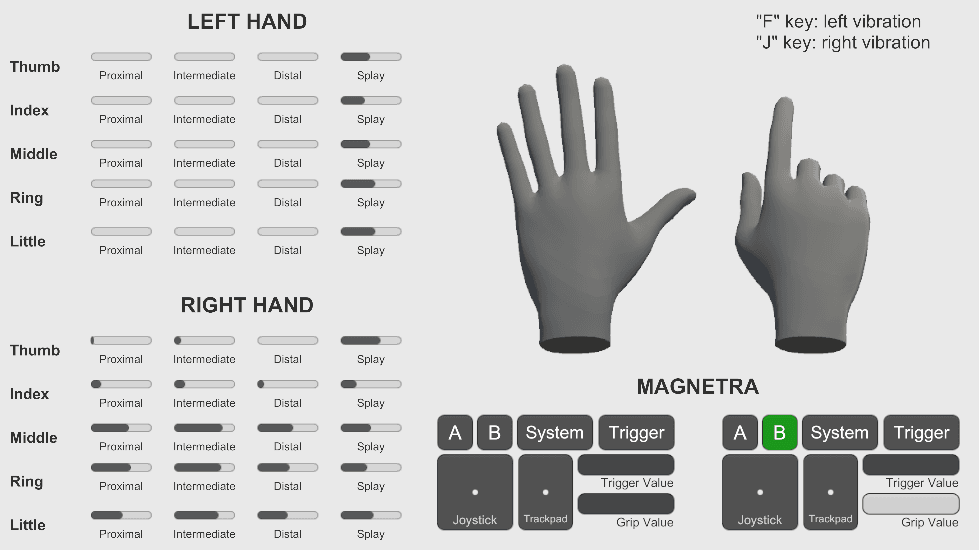
Usage Examples
In the Assets/ContactGloveSDK/Example/ folder, there are two scenes: HowToUse_SteamVR and HowToUse_NoSteamVR.
HowToUse_SteamVRis a sample scene designed for use with SteamVR's Skeletal Input. It requires the SteamVR Plugin to run.HowToUse_NoSteamVRis a sample scene focused solely on accessing various ContactGlove information.
This document explains how to use the ContactGlove API through the HowToUse_NoSteamVR scene. In this scene, vibration is triggered by button input, joystick-based movement, and finger bending degrees are displayed.
Accessing the ContactGlove API
You can access the ContactGlove API by retrieving the component from an object that has either ContactGloveManagerWithSteamVR.cs or ContactGloveManager.cs attached.
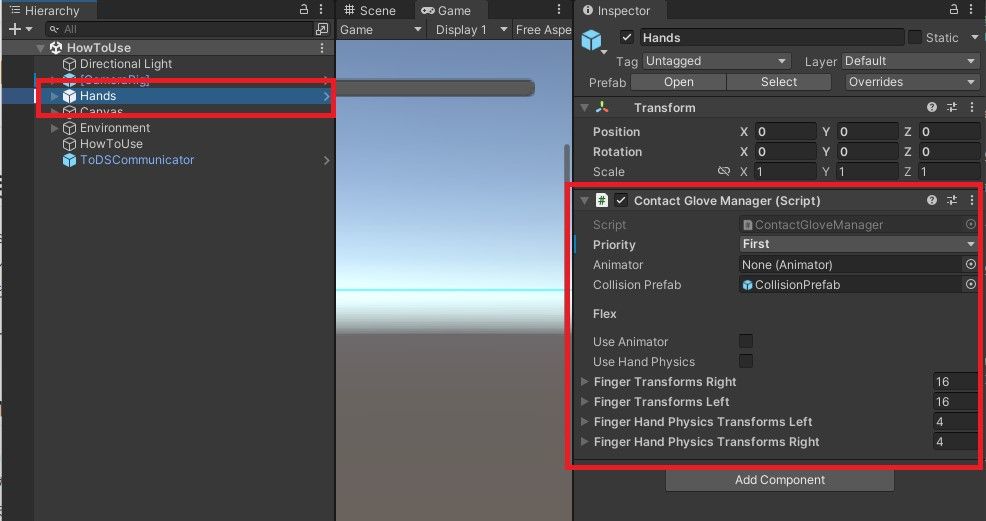
IContactGloveManager gloveManager = GetComponent<IContactGloveManager>();The object named Hands has the ContactGloveManager attached.
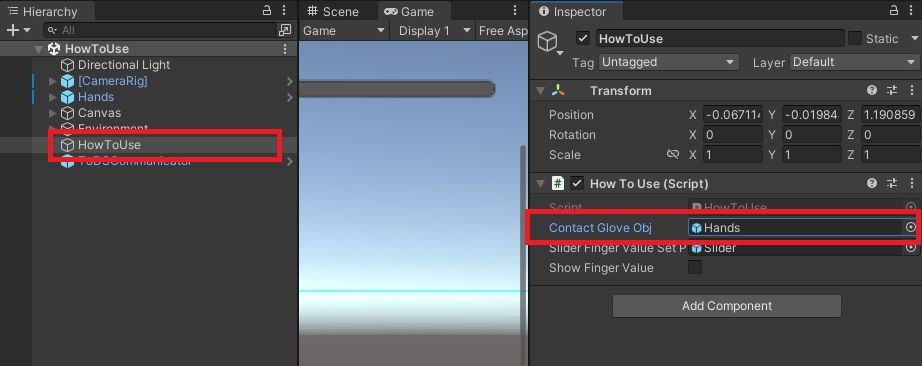
In the script HowToUse.cs attached to the object named HowToUse, the IContactGloveManager is retrieved in the Start method.
void Start()
{
    this.cgManager = contactGloveObj.GetComponent<IContactGloveManager>();
}
Using this obtained IContactGloveManager, you can access the ContactGlove API.
Using Multiple Devices
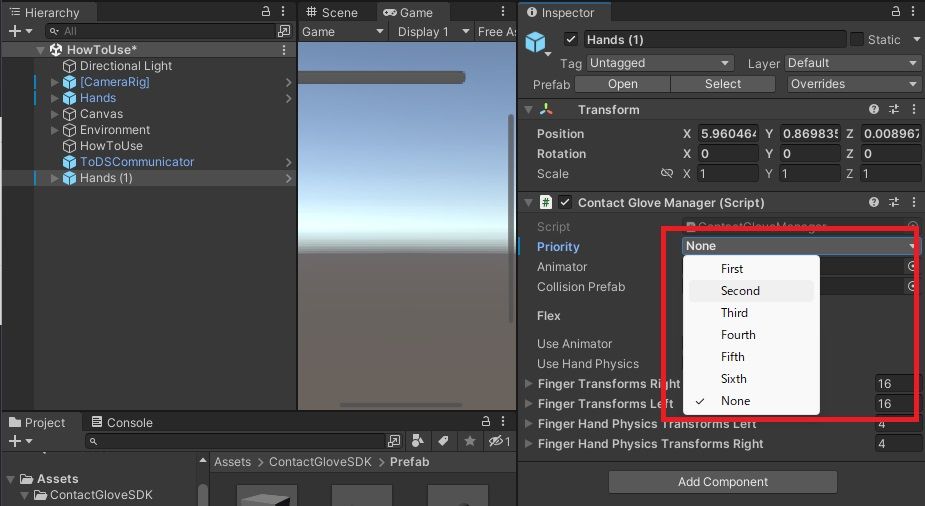
The SDK version 1.1.0 and later allows simultaneous operation of multiple ContactGloves. When adding a new device, place the Hands prefab from the Assets/ContactGloveSDK/Prefab into your scene.
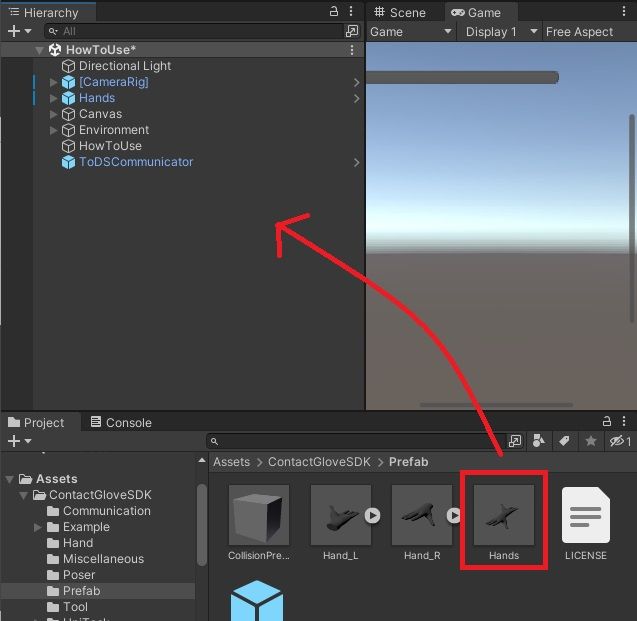
Initially, the Priority attribute of the ContactGloveManager attached to Hands is set to None. Change it to a different priority to distinguish between multiple devices.
Changing the OSC Port
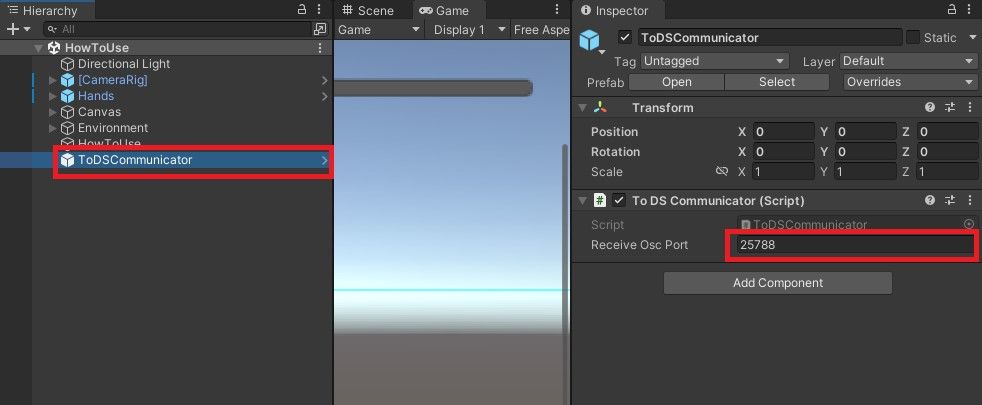
Change the Receive Osc Port on the ToDSCommunicator object, as shown below.
Changing the Vibration
In the HowToUse_NoSteamVR scene, vibrations are triggered via keyboard input.
void Update()
{
    if (Input.GetKeyDown(KeyCode.F))
    {
        cgManager.SetVibration(HandSides.Left, 0.2f, 160.0f, 0.5f);
    }
    if (Input.GetKeyDown(KeyCode.J))
    {
        cgManager.SetVibration(HandSides.Right, 0.1f, 160.0f, 0.5f);
    }
}
Retrieving Finger Joint Rotation
float flex = cgManager.GetFingerRotationAmplitude(HandSides.Left, FingerRotationAmplitude_e.IndexDistal);This code retrieves the rotation amplitude for the distal joint of the index finger on the left hand.
Controller Input
You can register handlers for specific controller inputs to trigger events. The following code generates a 0.1-second vibration when the left-hand A button is pressed:
void Start()
{
    this.cgManager.AddOnControllerInputHandler(HandSides.Left, ControllerButtonType.A, () =>
    {
        cgManager.SetVibration(HandSides.Left, 0.5f, 160.0f, 0.1f);
    });
}
If you wish to directly retrieve the controller state:
ButtonState leftA = cgManager.GetControllerInput(HandSides.Left, ControllerButtonType.A);
float rightX = cgManager.GetControllerInput(HandSides.Right, ControllerFloatInputType.JoystickX);
Retrieving Wrist Rotation
Quaternion wristRotation = cgManager.GetWristPose(HandSides.Left);This retrieves the rotation of the left wrist.
For additional details, refer to the documentation.