How to Use ContactGlove MotionBuilder Plugin V1
Adding a Device
-
Launch DivingStation and MotionBuilder.
-
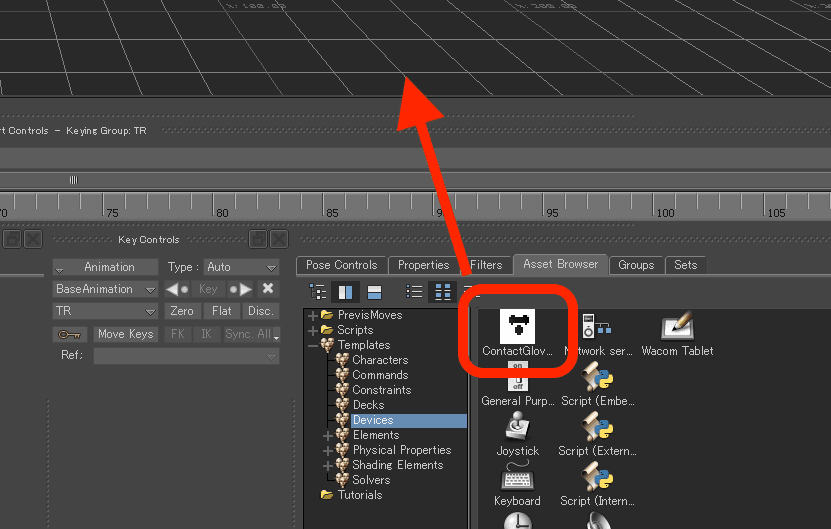
In the Asset Browser, drag and drop "ContactGlove Device" into the Viewer window.
-
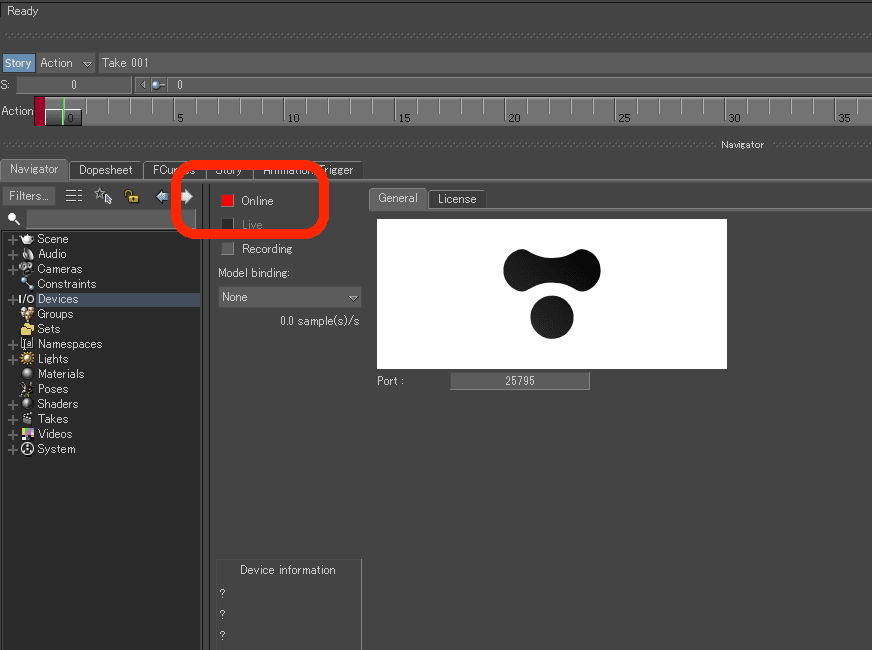
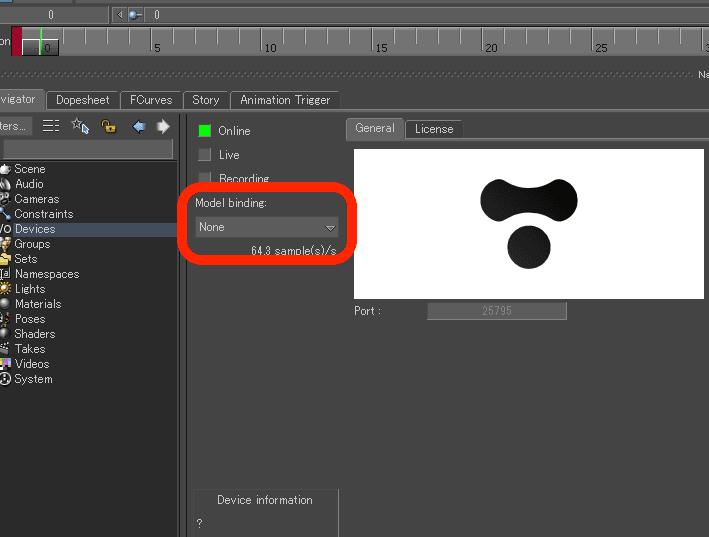
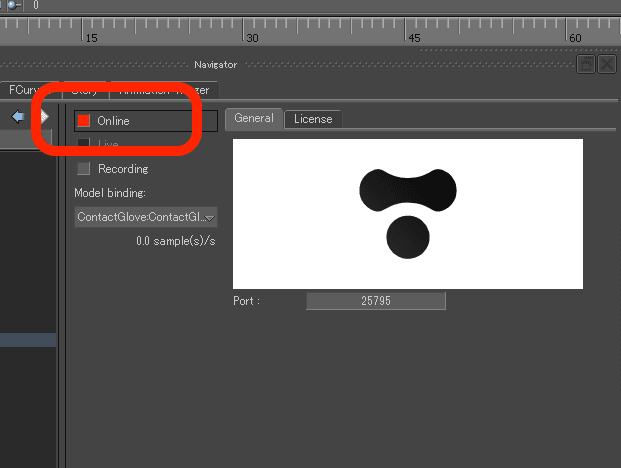
Press the Online button in the displayed window.
-
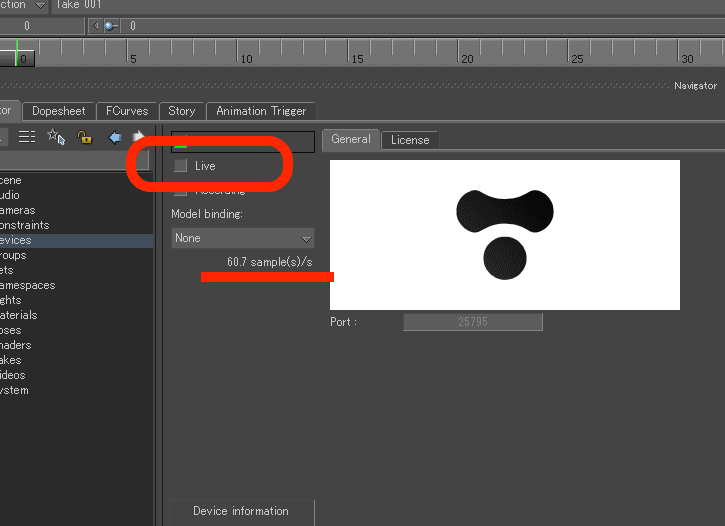
Verify that sample(s)/s is increasing, then turn Live on.
-
Select Create from Model Binding.
-
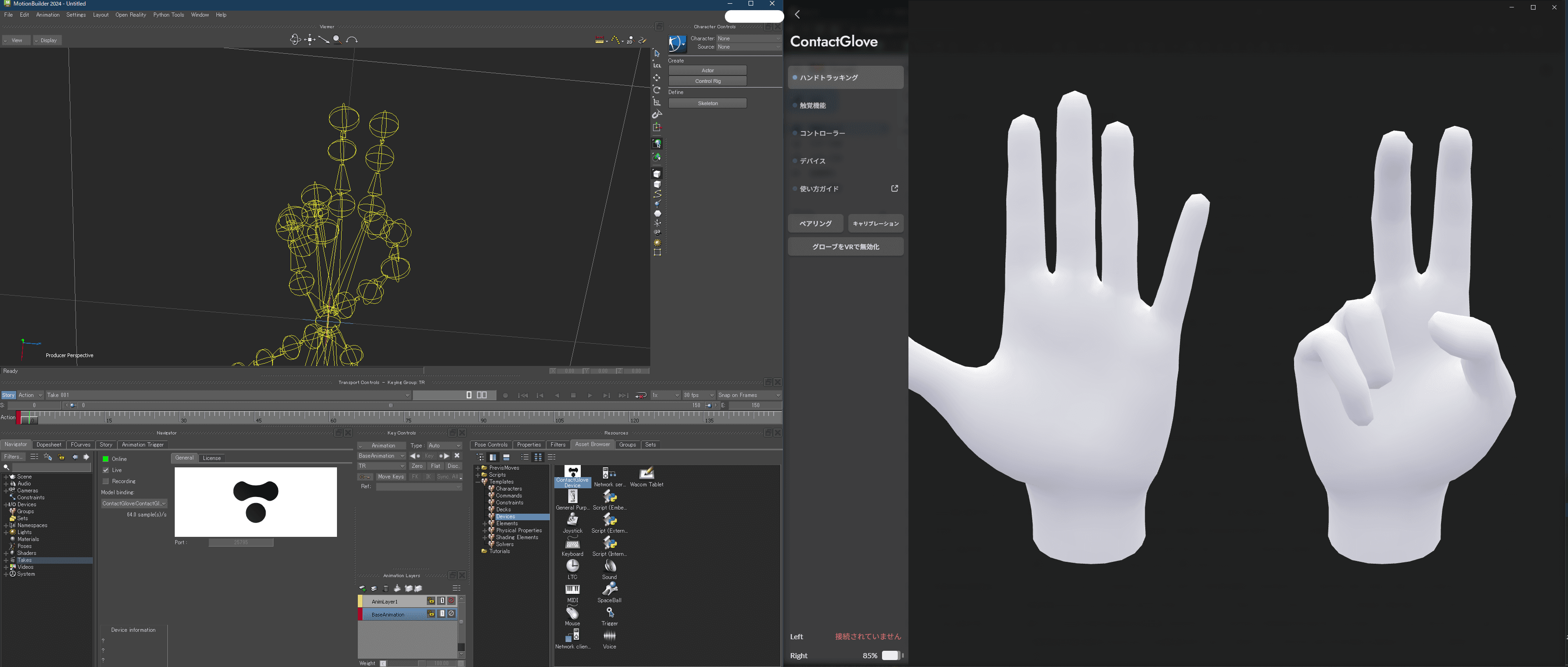
The glove movements should now sync with MotionBuilder.
Changing Communication IP/Port Number
Set the destination IP address in DivingStation. If you change the port number, set the same number in both DivingStation and the MotionBuilder ContactGlove Plugin.
DivingStation
-
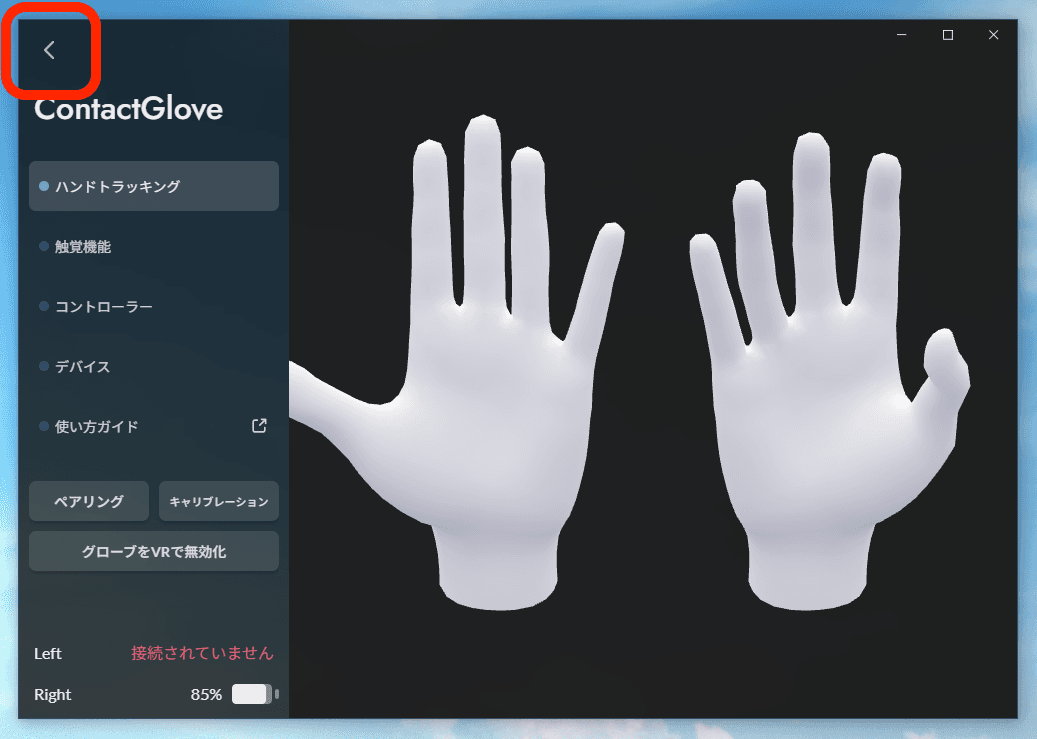
If a glove screen is open, select Home in the top-left corner.
-
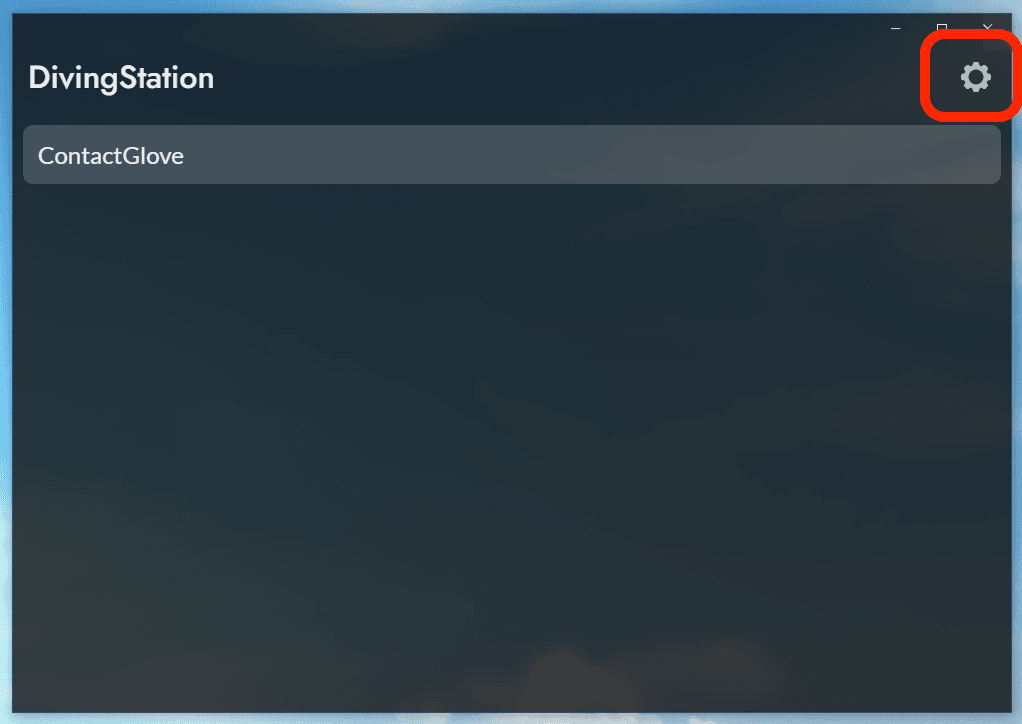
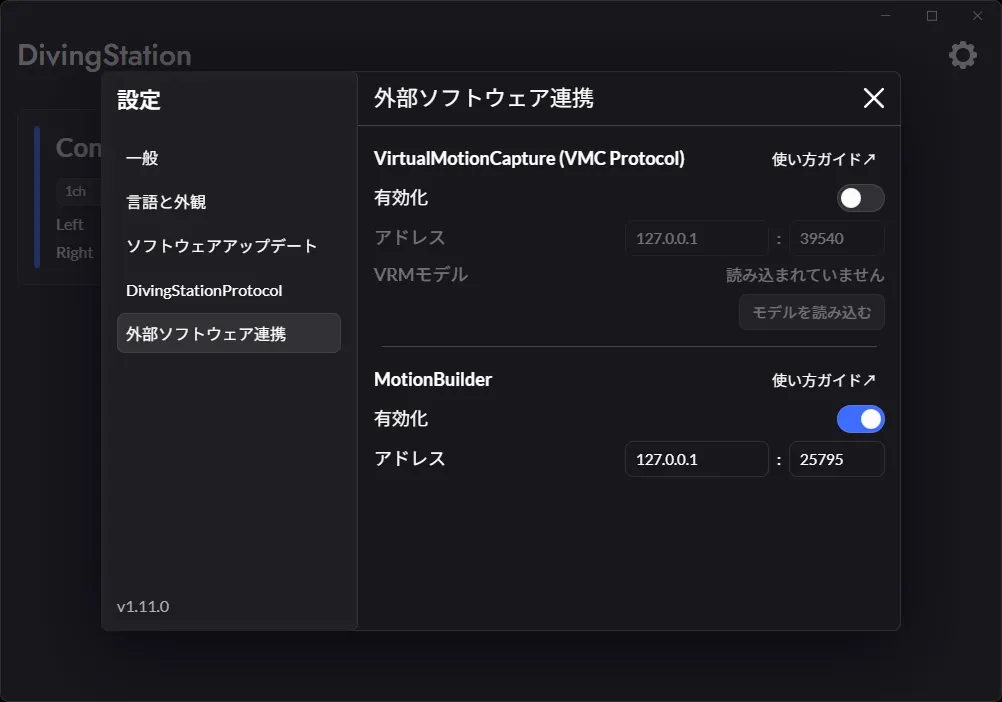
Press the gear icon in the top-right corner of the screen.
-
Select External Software and enter the communication IP address and port number under MotionBuilder.
MotionBuilder ContactGlove Plugin
-
Set the MotionBuilder ContactGlove Plugin to Offline.
-
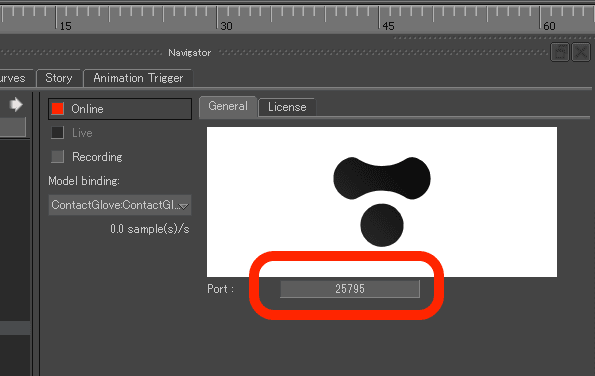
Enter the communication Port number in the field below the logo.